Every photographer has a version of this story. A drive stops spinning, a laptop takes a glass of water, or a folder turns out to be a folder of zero-byte files that look perfectly normal in the file browser. The difference between an annoying afternoon and losing ten years of work is not luck. It is whether a second copy existed somewhere the disaster could not reach.
The 3-2-1 backup rule is the shortest useful version of that idea: three copies of the data, on two different kinds of media, with one copy off-site. It is four decades old, it is boring, and almost everyone implements it wrongly in the same four ways.
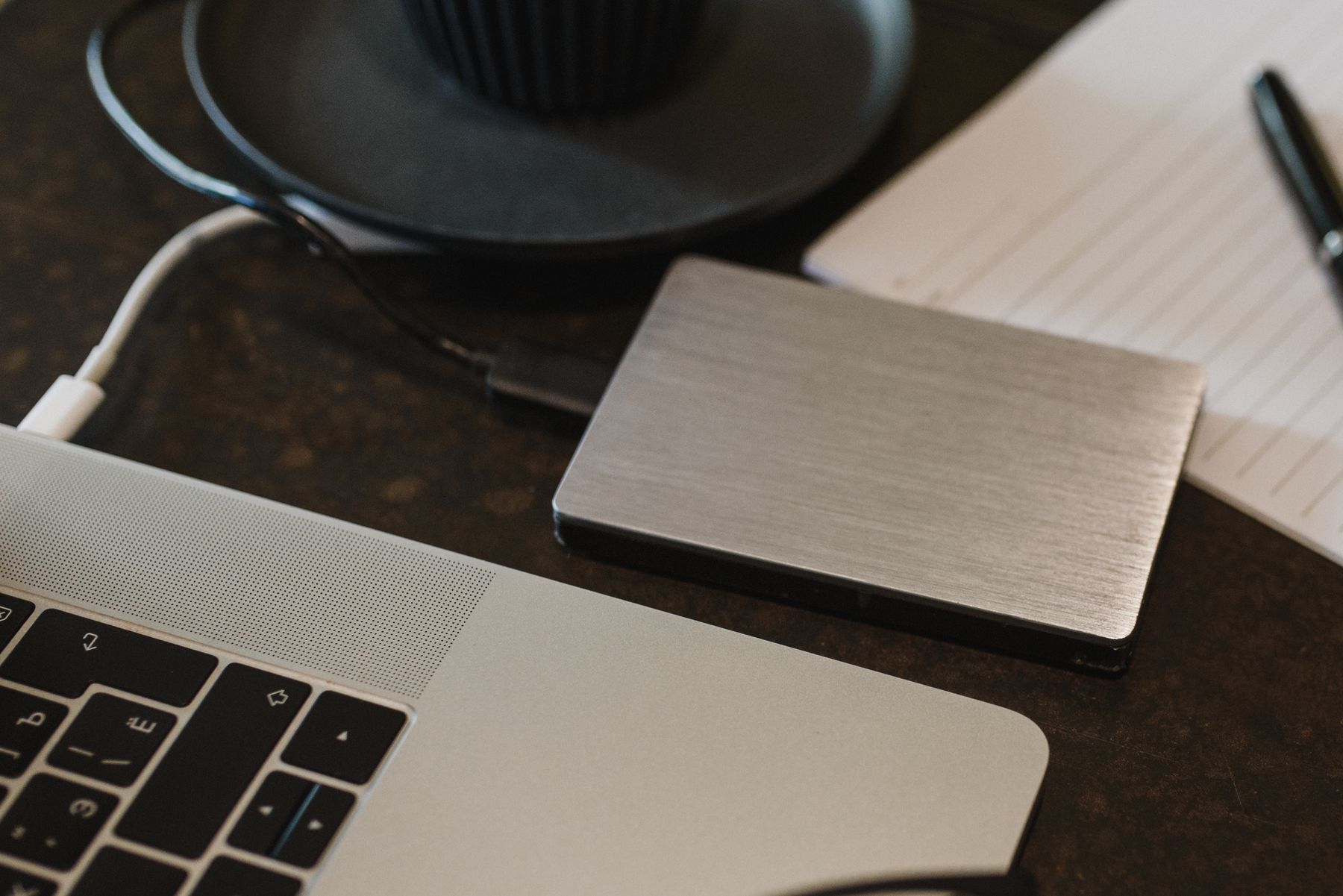
What the 3-2-1 backup rule actually buys you
The rule is not about redundancy. It is about surviving different classes of failure, and each number exists because a specific class defeats the previous one.
Three copies means the failure of any single device is not the end of the library. Two media types matters because failures correlate: two identical drives, bought the same week, from the same batch, sitting on the same shelf, can fail from the same firmware bug or the same power event. And one copy off-site exists because fire, flood, theft and simple burglary do not respect your desk.
Note what the rule does not cover: deletion. Nothing in the 3-2-1 backup rule protects you from removing a file you meant to keep, and that — not dead hardware — is the failure that actually catches working professionals.
Failure one: the drive dies
This is the one everybody plans for, and the easiest to survive — provided the second copy already exists when it happens. Both drives that have failed on me were WD My Passport 4TB units, and neither failure was exotic. The first simply wore out: it was the drive that travelled everywhere, plugged and unplugged several times a day for years, until one afternoon it mounted, listed its folders, and then refused to open a single one of them. The second was killed by transport — a bag, a corner, a knock I did not see — and afterwards it clicked instead of reading.
Usage and transport are the two ways a photographer actually loses a drive, and neither announces itself in advance. Portable drives live in bags, get unplugged mid-write, and spend years being carried rather than used. The first of mine mounted and showed its contents perfectly right before it stopped being able to read them.
I replaced them with a Samsung T9 4TB, a portable NVMe SSD on USB 3.2 Gen 2×2 rated at up to 2,000 MB/s. It addresses both of the things that actually killed the Passports: there are no moving parts to be knocked out of alignment, and dumping a 4TB card load takes minutes instead of most of an hour. On a machine without Gen 2×2 — most Macs, for instance — it tops out around 1,000 MB/s, which is still several times what a spinning Passport could manage.
It has not fixed the thing that matters, because a faster drive is still one drive. An SSD survives transport far better than a spinning disk and fails far less gracefully: a dying hard drive usually starts clicking, and a recovery lab can often read the platters anyway. A failed SSD controller tends to take the mapping table with it, so the drive stops being visible entirely, and the data on it is frequently unrecoverable by anyone at any price. The T9 is a better working drive. It is not a backup, and no amount of money spent on it makes it one.
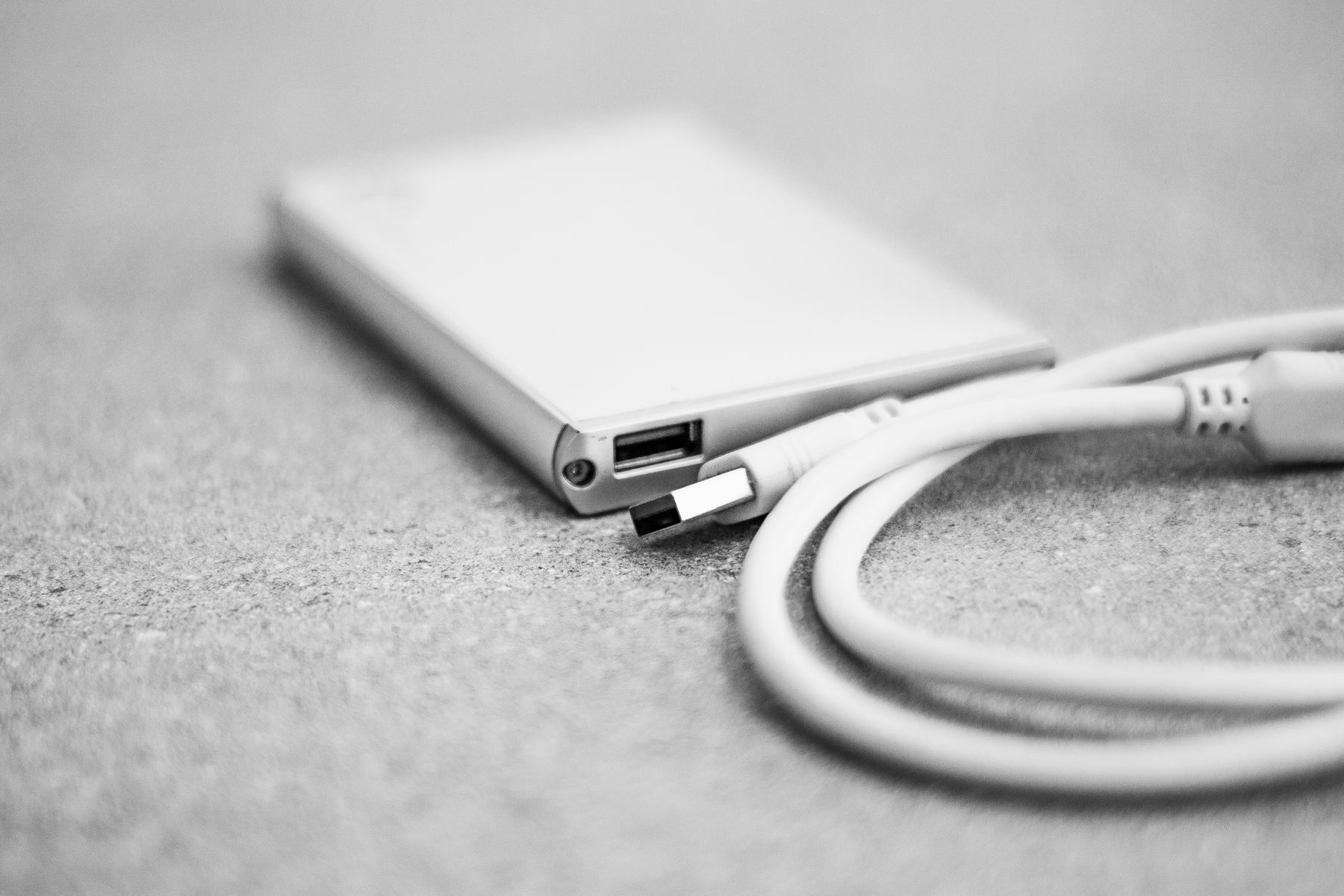
The lesson is not that drives fail. It is that they fail with almost no warning: SMART attributes are a smoke alarm, not a fire door. A drive can pass every self-test an hour before it stops responding, and the last thing it does is make you believe you have time.
The practical arrangement is unglamorous: the working copy lives on fast local storage, a second copy on a NAS or a second local disk, a third somewhere else entirely. You edit from the working copy only, and the others are never mounted during editing.
Failure two: the data is fine, the files are not
Silent corruption is nastier than a dead drive because nothing announces it. A marginal USB controller, a cable folded too many times, a filesystem that was never cleanly unmounted — any of these can write plausible-looking garbage. The file opens. It is the right size. It is simply wrong, and you will not notice for months.
Worse, a mirroring tool copies the garbage to your backup within seconds, because mirroring does not know what “correct” means. It only knows “same”.
My own failures have all been noisy ones — a drive that clicks, a folder that will not open — and I have never caught silent corruption in my own archive. That is not reassuring, it is the point: the quiet failure is the one nobody notices until the only remaining copy is corrupted too, which is why the defence has to be structural rather than attentive.
This is why media diversity matters more than copy count. A second copy on the same controller, the same filesystem and the same power supply shares the same failure mode, and therefore is not really a second copy at all. Corruption usually surfaces at the least convenient moment: an export that fails on one frame out of four hundred, a catalog that refuses to open a file whose thumbnail renders perfectly, a TIFF that opens with the top third of the image grey. Each of those is a file that was written badly months earlier and sat there looking correct.
Failure three: sync is not backup
Cloud sync services keep two locations identical, and identical is exactly what you do not want when the first location is wrong. Delete a folder locally and the deletion propagates in seconds. Get ransomware and the encrypted files propagate. Reinstall the operating system with the wrong option and the mirrored copy follows you off the cliff.
If the tool’s job is to make two things the same, it is replication. A backup keeps older versions that the present cannot overwrite. One honest question for whatever you use: can I get back the version of this file from three months ago? If the answer is no, you have a sync — and you have one copy, not three.
Failure four: you deleted it
The most common disaster in a working studio is not hardware. It is a wrong keystroke: the wrong folder selected, an import that overwrites instead of adding, a batch edit applied to the wrong selection, or a client asking for “the old version” of something you replaced last spring.
Versioning is the only defence, and it has to live in the backup layer rather than in your habits. Object storage with versioning, snapshots on a NAS, or any backup tool that keeps dated restore points — the mechanism matters less than the property. Older versions have to survive the present, including when the present is your own mistake.
Putting the 3-2-1 backup rule into practice
Here is a shape that works, and the one I would recommend to anyone past a terabyte of RAW files. The 3-2-1 backup rule is only useful once each layer has a job.
Working set
The current project, on an internal SSD or a fast external drive — in my case the Samsung T9 4TB. This is the only copy you edit from. Everything else is deliberately out of the way, which is the point: a backup that is mounted is a backup that can be encrypted, overwritten or deleted by the same mistake that hit the source.
Local second copy
A NAS, or a large disk mounted only while it is being written to. Unmounted the rest of the time, so nothing can quietly reach it. On a NAS, use snapshots rather than plain shares — snapshots are what turn “same” into “recoverable”.

Off-site copy
Object storage or a remote server, written by a tool that keeps history rather than mirroring. Incremental, deduplicated, and encrypted before it leaves the machine, so the provider stores something it cannot read. For most photographers past a terabyte, that resolves to a NAS with snapshots as the local layer, object storage as the off-site layer, and a deduplicating command-line client as the bridge between them. The brands matter far less than the three properties: snapshots, versioning, and encryption before the data leaves the machine.
The catalog
The Lightroom or Capture One catalog is backed up separately, and more often than the photographs. It changes every day, it is small, and it is the part people forget until it is gone — at which point the RAW files are intact and the edits, keywords and collections that made them a library are not.
Sizing it honestly
Two numbers decide the cost: how much you shoot per year, and how long you keep everything. A working photographer producing 500 GB of RAW a year, keeping everything, needs roughly this:
- Year one — 0.5 TB working, 0.5 TB local, 0.5 TB off-site. About €150–250 all in if you start with one reasonable NAS and an object-storage account.
- Year five — 2.5 TB live plus history. Off-site storage dominates the bill at roughly €5–7 per terabyte per month with versioning enabled.
- Add 20–30% for catalogs, previews and exports, which nobody budgets for and which grow faster than the RAW files themselves.
The cheapest mistake is buying three cheap drives. The most expensive is discovering, on the day you need it, that your off-site copy was a sync.
Choosing tools
For the local layer
Anything that produces snapshots or versioned history rather than a mirror. A NAS with snapshot support is the least-effort option; a plain external disk with a versioned backup tool also works, provided the disk is unmounted between runs.
For the off-site layer
Object storage with versioning plus a command-line backup client is the combination that survives scrutiny. Open-source tools such as restic encrypt client-side, deduplicate across versions, and keep a repository you can verify and prune on a schedule. Commercial object storage from Backblaze B2 or similar providers costs little enough that the argument disappears.
What matters is the property, not the brand: client-side encryption, immutable or versioned history, and a restore path you have actually tested.
Retention: what to keep, and for how long
A backup with infinite retention is a backup you will stop paying for. Decide the schedule deliberately:
- Daily — catalog and recent work, kept 30 days.
- Weekly — the full library index, kept 12 weeks.
- Monthly — one restore point per month, kept 24 months.
- Archive — finished and delivered work, in cold storage, kept indefinitely.
Pruning is not optional. A repository that grows forever eventually costs more than the work is worth, and people respond by cancelling it — which is the worst possible outcome.
The restore drill
An untested backup is a hypothesis. Once a quarter, restore something real: pick a shoot you have not opened in a year, restore it into an empty folder, and open three files in an editor. If the restore takes an hour, or fills a disk you do not have, you have learned that today rather than on the day it matters.
Two cheap habits catch most silent failures:
- Alerts, not logs. The job should speak when it fails and stay silent when it works. A log file nobody reads is not monitoring.
- Checksums. Verify a sample of files against stored hashes periodically. Corruption that never surfaces is corruption you find years later, when the source is gone.
A concrete setup, step by step
Abstractions are cheap, so here is the actual sequence for the off-site layer using an encrypted, versioned repository. Any tool that behaves the same way will do; these are the ones I would reach for.
Create the repository once. Pick a StorageClass that keeps old versions, then initialise the repository with a passphrase you store somewhere that is not the machine holding the photographs.
restic init --repo s3:s3.eu-central-003.backblazeb2.com/photo-archiveBack up daily. The first run uploads everything and takes as long as your uplink deserves. Every later run sends only new chunks, because the repository is content-addressed and deduplicated.
restic backup /Volumes/Work /Volumes/Catalog \
  --exclude-caches --one-file-system
Prune on a schedule. Retention is where most archives quietly fail: the repository grows, the bill grows, and somebody cancels it. Set the policy explicitly and let the tool enforce it.
restic forget --keep-daily 30 --keep-weekly 12 \
  --keep-monthly 24 --prune
Verify, don’t assume. A repository check reads the metadata and a sample of data; a full read check goes further. Run the cheap one weekly and the expensive one quarterly.
restic check
restic check --read-data-subset=5%
Restore like you mean it. Restore into an empty directory and open the files — this is the drill that turns a hypothesis into a backup.
restic restore latest --target /Volumes/Scratch/RestoreTwo details make the difference between this working for years and quietly stopping: the job runs from a scheduler with email or push alerts on failure, and the passphrase lives in a password manager with an emergency-access plan. A perfectly encrypted archive whose passphrase died with a laptop is not a backup.
Backing up on the road
Travelling is when the 3-2-1 backup rule is most likely to collapse, because you carry one laptop, one card case and an optimistic attitude. The rule still applies, just compressed: the card is the source, the laptop or a portable SSD is copy two, and the hotel wifi is copy three — provided the upload finishes and you verify it did.
Three habits that survive airports:
- Never format a card until the day’s shoot exists twice. Import to the laptop, copy to the portable SSD, and only then reformat. Cards are cheap; the shoot is not.
- Upload the selects, not everything. A full RAW ingest over hotel wifi will not finish. Upload the day’s keepers and the catalog, and carry the rest home.
- Keep the portable SSD on your person, not in the checked bag. Two copies in the same backpack is one copy with extra steps.

The same logic applies to ransomware, which is worth one paragraph because it changes the threat model. Ransomware encrypts what it can reach, including network shares and mounted backup disks. The defence is not antivirus, it is architecture: the backup target must not be reachable with write credentials from the machine you edit on, and the repository must keep immutable history so an attacker cannot prune it. This is the single strongest argument for append-only or object-locked storage over a shared folder on the NAS.
RAID is not a backup
The most persistent misunderstanding in storage is that a RAID array is a safety net. It is not. RAID protects availability: if a disk dies at 3pm, the array keeps serving and you can replace the disk without stopping work. That is a real benefit and it is completely unrelated to whether your photographs survive.
Everything a RAID array does not protect against is the list above: a controller that writes garbage to every member disk, a filesystem that corrupts, ransomware that encrypts the volume, a slipped “delete” that propagates instantly, a stolen enclosure, a fire. A RAID array is a single device with internal redundancy, so under the 3-2-1 backup rule it counts as one copy, not two — and the second copy has to live somewhere else.
The same correction applies to a NAS with mirrored disks. Mirroring is RAID with a friendlier name. If the NAS is the only other place your photographs exist, you have two copies in one building and no history, which fails the test on both counts.
The checklist
- Count your copies. Write them down. Most people have two and believe they have three.
- Check the media. If every copy is on the same kind of drive, in the same room, fix that first.
- Confirm the off-site copy keeps history. If it synchronises, replace it or add a versioned layer.
- Back up the catalog separately, daily.
- Schedule a restore test. Put it in the calendar now, not “when there is time”.
- Make failures loud and successes quiet.
What this costs you in practice
Beyond storage, the 3-2-1 backup rule costs about two hours a year: one to set the schedules, one to run the restore drill. Compare that with the alternative — re-shooting a wedding, telling a client the files are gone, or rebuilding an archive from whatever survived on social media.
If you want the short version of this article: three copies, two media, one off-site, versioned, and tested. Everything else is implementation detail. You can read more about how I work, or see the affiliate disclosure if you buy anything through the links on this site.
If you only do one thing this week
The cheapest useful upgrade to the 3-2-1 backup rule is the off-site copy, and it should be the kind that keeps history. Adding a versioned remote repository is a single afternoon’s work, it costs the price of a coffee per month, and it converts every other failure in this article from a catastrophe into an inconvenience. The local redundancy you already have will keep you working; only the off-site copy keeps the archive alive.
Then put the restore drill in your calendar and forget about it. A backup system you do not think about, because it reports only when it fails, is the only kind that survives five years of real use.
The 3-2-1 backup rule survives because it is not clever. It is a set of habits that still work on the day you are tired, distracted or in a hurry — which is exactly the day something breaks.